



Why Wi-Fi calling may be killing your phone’s battery life
NEWNow you can listen to News articles!
When you live in an area with limited or no cell service, Wi-Fi calling can be a lifesaver. Keeps you connected for calls and texts when your phone would otherwise be useless. However, some iPhone users have noticed that this feature seems to drain the battery faster than usual. Laura B wrote to us asking:
“Living in a rural area with no cell service, naturally my iPhone is used with Wi-Fi and Wi-Fi calling only. I find it uses more battery this way than when connected to cellular data. Is this possible?”
Laura’s question is a common one and the short answer is yes, Wi-Fi calling can sometimes use more battery than a strong cellular connection. The reasons haven’t changed much in iOS 26, but Apple has added some tools that make it easier to understand and manage battery usage. And if you’re on Android, don’t worry; We’ll also cover the steps for your phone, below.
Sign up to receive my FREE CyberGuy report
Get my best tech tips, urgent security alerts, and exclusive offers delivered straight to your inbox. Plus, you’ll get instant access to my Ultimate Guide to Surviving Scams, free when you join me CYBERGUY.COM information sheet.
10 IOS 26 TRICKS THAT HELP YOU GET MORE PERFORMANCE FROM YOUR IPHONE
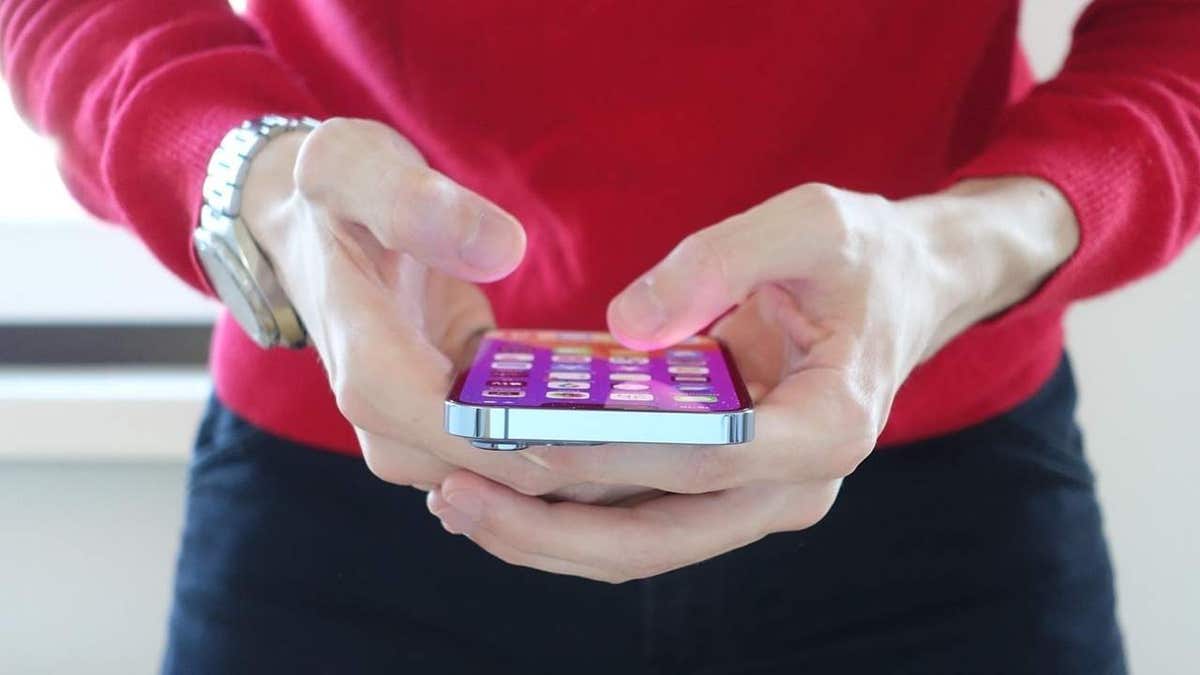
Wi-Fi calling keeps you connected but can drain your iPhone’s battery faster. (Kurt “Cyberguy” Knutsson)
Why Wi-Fi calling can use more power
Although Wi-Fi calling is designed to keep you connected, there are some behind-the-scenes reasons that can drain your iPhone’s battery faster than expected.
1) Your phone is still searching for a cell signal
Even when you don’t have service, your iPhone can periodically scan for towers. That search consumes energy unless steps are taken to stop it.
2) Wi-Fi antenna + call processes remain active
Wi-Fi calling requires your Wi-Fi radio to remain on constantly while running additional processes in the background to stabilize calls. That workload can consume more power than simply maintaining a strong LTE signal.
3) Weak or unstable Wi-Fi makes things worse
If your Wi-Fi signal drops or fluctuates, your iPhone works harder to maintain the connection. That extra effort can heat up the phone and drain the battery.
WHY IPHONE USERS ARE THE NEW TOP SCAM TARGETS
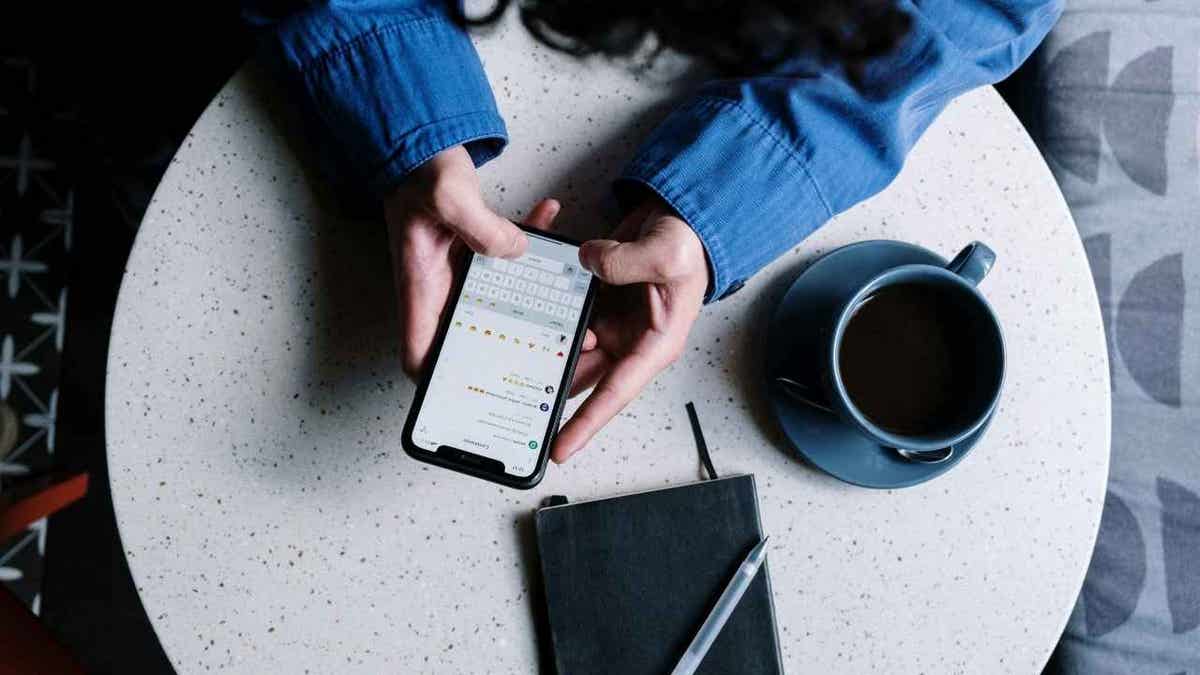
Simple settings help you enjoy Wi-Fi calling without draining your power. (Kurt “Cyberguy” Knutsson)
How to make Wi-Fi calling use less battery in iOS 26
These settings are tested and work just as well on iOS 26:
1) Stop your iPhone from searching for towers
- Gonna Settings
- Tap airplane mode
- turn it IN
- Then return to wifi in Settings and turn Manually activated Wi-Fi
This prevents your iPhone from wasting energy searching for non-existent cellular service.
2) Keep Wi-Fi calling enabled
- Open Settings.
- Scroll down and tap Applications.
- Click Phone.
- Tap Wi-Fi calling.
- Make sure “Wi-Fi calling on this iPhone” is switched IN.
3) Reduce background activity
- Background app refresh: Settings → General → Background app refresh → set to Wi-Fi only or turn it off for applications you don’t need.
- Recover mail: Settings → Applications →Mail → Accounts → Get new data → change to By hand or set a longer interval like every 30 minutes either Every 15 minutes.
4) Cut the mesh and drain from the system.
- Glow: Settings → Screen and brightness → lower brightness or use auto brightness via by clicking Automatic.
- Location services: Settings → Privacy and security → Location services → disable for applications that doesn’t need it.
5) Keep the Wi-Fi connection strong
- place your phone closer to the router
- Consider upgrading to a mesh wifi system if your signal drops throughout the house
YOUR PHONE IS FOLLOWING YOU EVEN WHEN YOU THINK IT’S NOT
iOS 26 adds new battery analytics to track and manage power usage. (Kurt “Cyberguy” Knutsson)
What iOS 26 adds to the mix
Apple didn’t change how Wi-Fi calling works in iOS 26, but it did improve the way it monitors and manages battery usage:
- adaptive power (on supported iPhones) – This feature automatically adjusts things like screen brightness, refresh rates, and background tasks when the battery starts to drain faster than usual.
- New battery analysis: iOS 26 shows a single weekly average view with clearer breakdowns of which apps and processes are consuming power. To check this: Open Settings → scroll down and tap Battery→ the weekly view Average battery usage appears by default → tap a bar to view a specific day’s app and process usage → scroll down and tap Show all battery usage to see Active Screen vs. Inactive Screen charging time and history along with updated weekly statistics
These tools don’t eliminate the overhead of Wi-Fi calling, but they do give you better visibility and, in some cases, automatic adjustments to help you stretch your load.
How Wi-Fi calling affects battery on Android
Android users face many of the same challenges as iPhone owners when it comes to Wi-Fi calling and battery consumption. The basic reasons overlap; additional processes, Wi-Fi radios that remain active, and unstable signals. But Android also has some unique quirks and settings that are worth tweaking.
YesSettings may vary depending on the manufacturer of your Android phone.
Your phone is still searching for cell towers
Even when Wi-Fi calling is turned on, your Android device may still scan for mobile networks in the background. This constant scanning consumes power unless you turn it off.
Arrange: Enable airplane mode and then manually turn Wi-Fi back on. To do this open Settingstap Network and Internetand turn on airplane mode. Once active, return to wifiturn it on manually, and reconnect to your network so that Wi-Fi calling continues to work without your phone constantly searching for cell towers.
Carrier settings differ
Not all carriers handle Wi-Fi calling the same way on Android. Some routes call differently, which may consume more power depending on the network.
Arrange: Check your provider’s Wi-Fi calling preferences at Settings → Network and Internet → mobile network → Advanced → Wi-Fi calling.
Background apps can clutter
Unlike iOS, many Android devices allow dozens of apps to continue running in the background. When Wi-Fi calling is active, that extra charge can drain faster.
Arrange: Gonna Settings → Battery → Battery usage and identify the applications that consume the most power, then restrict background activity.
Adaptive battery and power saving modes
Most Android phones (Pixel, Samsung Galaxy, OnePlus, etc.) include adaptive battery or similar power saving tools. These features limit apps that consume a lot of battery when Wi-Fi calling is active.
Arrange: Allow Adaptive battery in Settings → Battery → Adaptive preferencesor use Power saving mode if you notice faster draining during calls.
Strengthen your Wi-Fi signal
As with iPhones, weak Wi-Fi is a big culprit. Dropped or unstable Wi-Fi forces your Android phone to work overtime to maintain a constant call.
Arrange: Stay close to your router or consider upgrading to a mesh Wi-Fi system.
CLICK HERE TO GET THE News APP
Kurt’s Key Takeaways
Wi-Fi calling is a lifesaver when you’re off the grid, but it has its pros and cons. It can consume more power than a strong cellular connection, especially if the Wi-Fi signal is not stable. The good news is that iOS 26 gives you better battery insights and smarter tools to help manage power. With a few simple tweaks, like turning on Airplane Mode when there’s no service, limiting apps in the background, and keeping your Wi-Fi strong, you can reduce unnecessary consumption.
What has been your biggest challenge with your phone’s battery life and how do you handle it? Let us know by writing to us at Cyberguy.com.
Sign up to receive my FREE CyberGuy report
Get my best tech tips, urgent security alerts, and exclusive offers delivered straight to your inbox. Plus, you’ll get instant access to my Ultimate Guide to Surviving Scams, free when you join me CYBERGUY.COM information sheet.
Copyright 2025 CyberGuy.com. All rights reserved.
Kurt “CyberGuy” Knutsson is an award-winning technology journalist with a deep love for technology, gear and gadgets that improve lives with his contributions to News and News Business since mornings on “News & Friends.” Do you have any technical questions? Get Kurt’s free CyberGuy newsletter, share your voice, a story idea or comment on CyberGuy.com.