



Stop your smart TV from listening to you
NEWNow you can listen to News articles!
Most people don’t realize that their smart TV includes microphones that can capture sound even when voice commands are disabled. These tiny microphones power voice search and assistants, but they also pose privacy risks. If that worries you, you’re not alone. The good news is that it only takes a few minutes to disable your smart TV’s microphone and protect your conversations.
Sign up to receive my FREE CyberGuy report
Get my best tech tips, urgent security alerts, and exclusive offers delivered straight to your inbox. Plus, you’ll get instant access to my Ultimate Guide to Surviving Scams, free when you join me CYBERGUY.COM information sheet.
YOUR PHONE IS FOLLOWING YOU EVEN WHEN YOU THINK IT’S NOT
Step one: Find the built-in microphone switch
Before opening menus, check your TV’s frame. Many models feature a small hardware switch that completely turns off the microphone.
Look closely at the bottom or sides of the screen. Some switches are labeled “Built-in MIC”. On Samsung TVs, it is usually near the bottom right edge when looking at the screen.
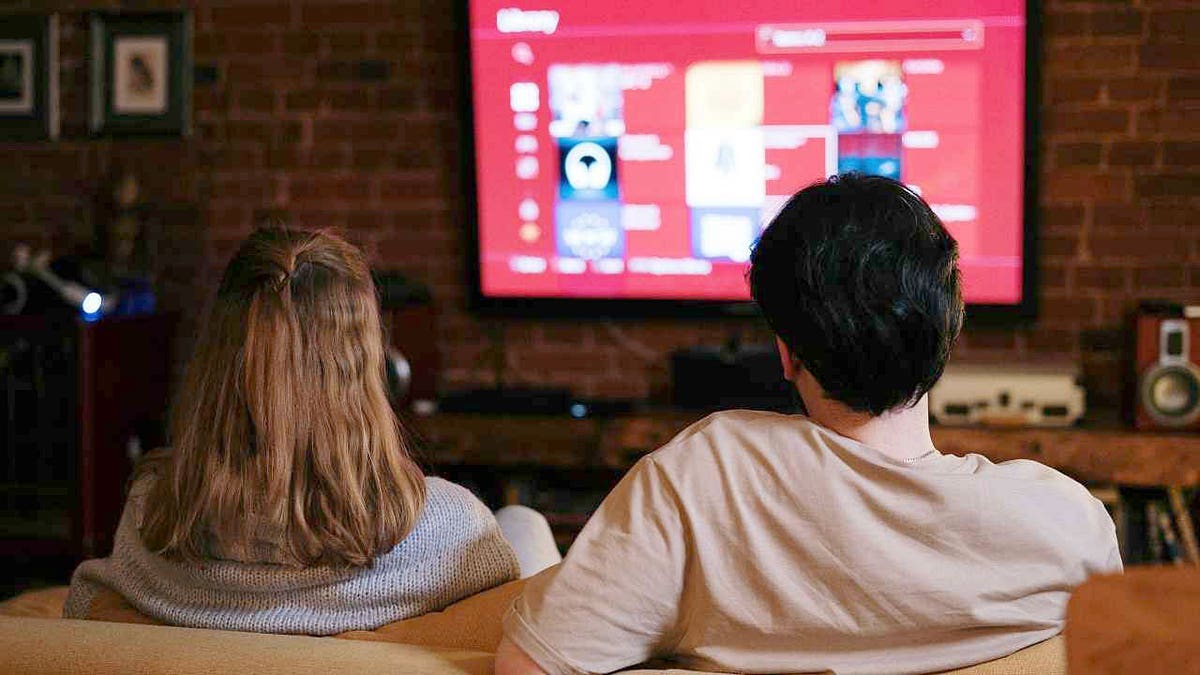
Regain control of your space and enjoy your smart TV safely without your microphone listening in. (Kurt “CyberGuy” Knutsson)
Slide the switch to “off.” Your TV may confirm the change with an on-screen message. This is the most reliable way to stop the microphone because it physically cuts power to it.
Step Two: Disable Smart TV Microphone in Settings
If your TV lacks a physical switch, go to its settings menu. While the exact names differ depending on the brand, most follow a similar pattern.
Press Home either Settings on your remote control. Look for main sections like System, General either Privacy. Inside, you’ll find microphone or voice options labeled voice recognition, voice assistant either Microphone access.
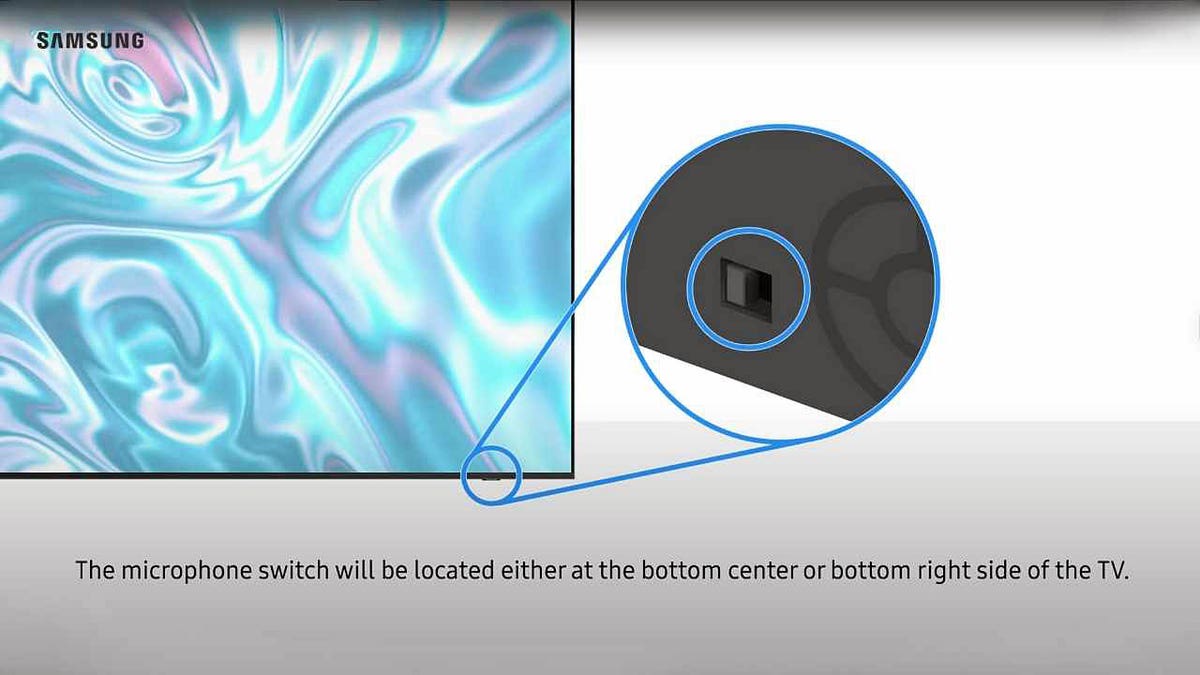
Slide the built-in microphone switch to stop listening to your TV. (Samsung)
Examples:
- Samsung: General → Voice
- Sony: Privacy → Google Assistant
- LG: User Agreements → Voice Settings
Disable all functions that use the microphone. Some options may appear in more than one place, so review each section carefully.
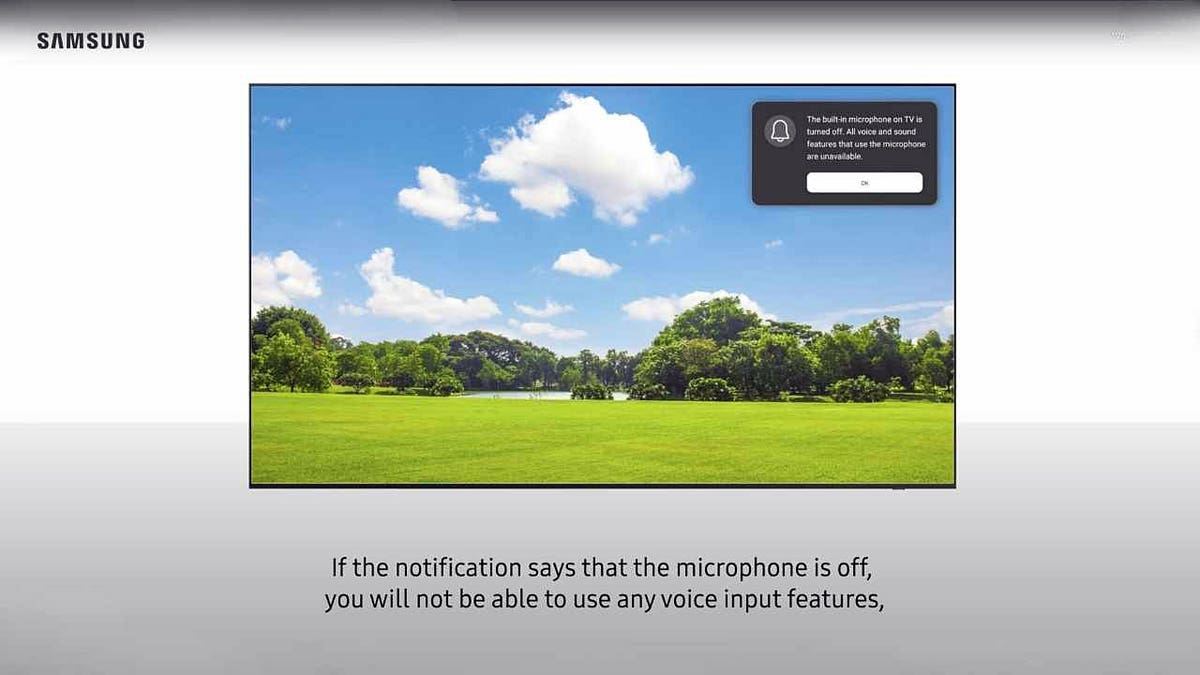
Use your TV settings to disable voice features to protect privacy. (Samsung)
Step Three: Balance Convenience and Privacy
Turning off your TV’s microphone doesn’t mean you lose smart features. Many remote controls include a push-to-talk button that activates voice control only when pressed.
If you rarely talk to your TV, it makes sense to keep the microphone off. If you like using voice commands, temporarily enable them when you need them.
Step Four: Check connected devices and apps
Even after you disable your smart TV’s microphone, voice-enabled apps and linked devices may still be listening.
Check connected smart assistants, such as Alexa, Google Assistant, or Bixby. These platforms can still capture audio through your phone, smart speaker, or other device on the same network.
PREVENT GOOGLE FROM FOLLOWING EVERY MOVEMENT OF YOUR MOVEMENT
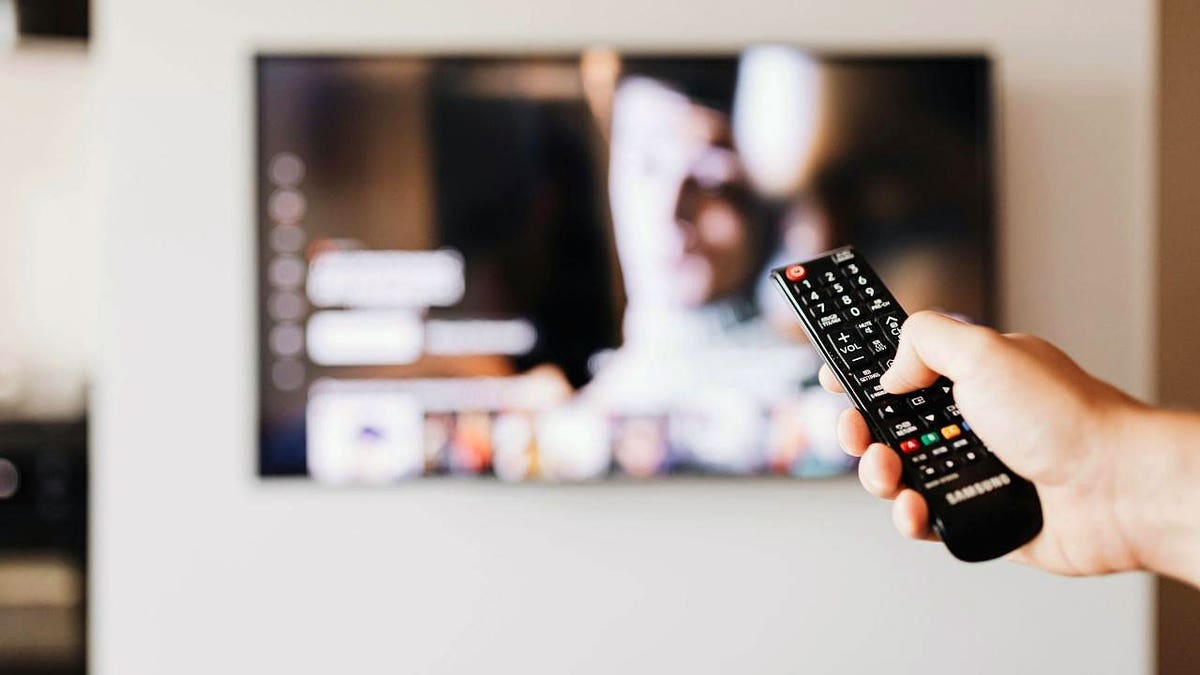
Maintain your privacy and still enjoy voice control, only use it when you need it. (Kurt “CyberGuy” Knutsson)
Take a moment to review the privacy settings on those apps as well. Turning off voice activity tracking on all your devices ensures that nothing in your home listens when you don’t want it to.
Why do smart TVs have microphones?
Manufacturers include microphones to make televisions more interactive. You can request weather updates, control the volume, or search for movies with your voice. It is convenient, but it has its advantages and disadvantages.
Some companies state in their privacy policies that voice data may be shared with third parties for analysis. That means the chatter in the living room could leave the house.
When you disable the microphone on your smart TV, you retain the benefits of a modern TV while limiting unwanted data collection.
What does this mean to you?
By taking a few minutes to change a setting or flip a switch, you’ll gain control over what your TV hears. It’s an easy way to improve your digital privacy without losing the entertainment experience you love.
You still get streaming apps, vivid displays, and fast connectivity, but with added peace of mind.
Take my quiz: How safe is your online security?
Do you think your devices and data are really protected? Take this quick quiz to see where you stand digitally. From passwords to Wi-Fi settings, you’ll get a personalized breakdown of what you’re doing well and what you need to improve. Take my quiz here: CyberGuy.com.
CLICK HERE TO DOWNLOAD THE News APP
Kurt’s Key Takeaways
Smart TVs offer great features, but convenience should never come at the cost of privacy. Whether you flip a switch or use the settings menu, you have the power to decide when your TV listens.
Will you recover the privacy of your living room today or will you leave it as it is? Let us know by writing to us at CyberGuy.com.
Sign up to receive my FREE CyberGuy report
Get my best tech tips, urgent security alerts, and exclusive offers delivered right to your inbox. Plus, you’ll get instant access to my Ultimate Guide to Surviving Scams, free when you join me CYBERGUY.COM information sheet.
Copyright 2025 CyberGuy.com. All rights reserved.
Kurt “CyberGuy” Knutsson is an award-winning technology journalist with a deep love for technology, gear and devices that improve lives with his contributions to News and News Business since mornings on “News & Friends.” Do you have any technical questions? Get Kurt’s free CyberGuy newsletter, share your voice, a story idea or comment on CyberGuy.com.