



Google’s new Call Reason feature marks calls as urgent
NEWNow you can listen to News articles!
Sometimes you need someone to respond right away. Maybe you are blocked. Maybe those concert tickets are about to go on sale. Android users are about to get a useful update that gives their calls more context when time matters.
Google is rolling out a beta feature called Call Reason in the Phone by Google app that lets you mark a call as urgent before dialing.
When you use it, the person receiving your call sees the urgent label on their screen. If they miss it, the same note appears in their call history. That quick hint can prioritize your call without needing to send a separate message.
Sign up to receive my FREE CyberGuy report
Get my best tech tips, urgent security alerts, and exclusive offers delivered straight to your inbox. Plus, you’ll get instant access to my Ultimate Guide to Surviving Scams, free when you join me CYBERGUY.COM information sheet.
MANAGE ANDROID APPS WITH THE NEW ‘UNINSTALL’ BUTTON
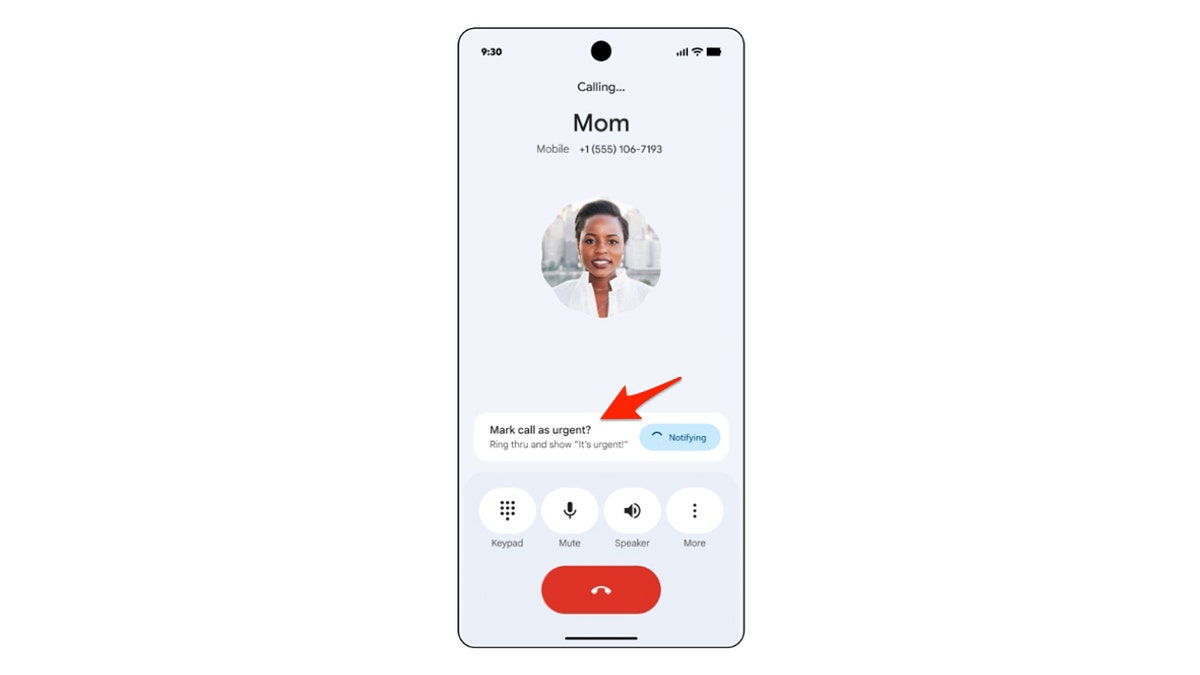
Call Reason allows you to mark a call as urgent before dialing, giving your contacts a clear signal that your call needs quick attention. (Google)
How the Call Reason feature works
The reason for the call appears within the Phone by Google app on Android devices. The feature only works when both people are using Google’s default calling app and the contact is saved on your phone. Many Android phones come with Phone by Google pre-installed, especially Pixel models, while others like Samsung can use their own dialer. If your device doesn’t use Phone by Google by default, you may not see the feature until you install or switch to the Google version. Once marked as urgent, your call displays a clear indicator telling the other party that the conversation doesn’t have to wait.
This simple tool helps friends and family respond faster. It also reminds them if they miss the call. Since the note remains in the call log, you urge them to call back sooner.
Why this Call Reason feature on Android can help you
Missed calls are common. Many people silence their phones while working or driving. Call Reason closes that gap with a small but meaningful alert that adds context. You can alert someone that the call needs quick attention without creating extra steps or confusion.
At this time, Call Reason only supports the urgent tag. Google has hinted that more options could be coming later, such as personalized short messages or emoji-style indicators. That could add even more clarity when your call is tied to a specific topic.
5 HIDDEN BATTERY DRAINERS YOU CAN FIX RIGHT NOW
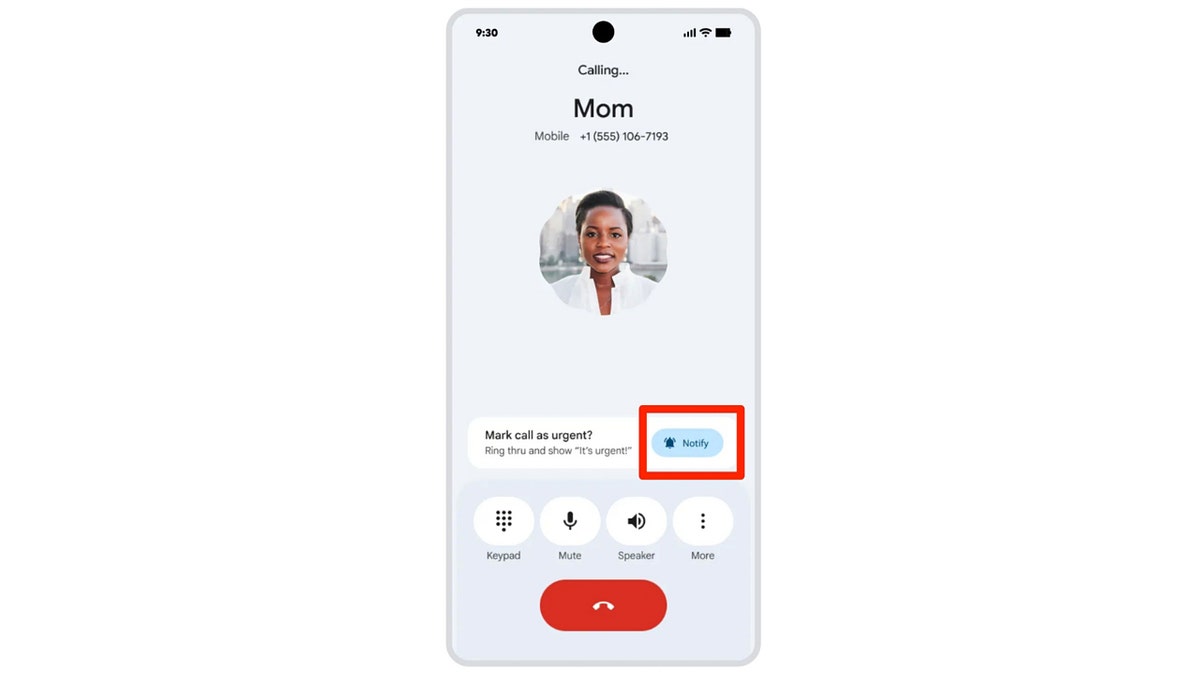
Both people must use the Phone by Google app for the urgent label to work, helping your calls stand out when the moment matters most. (Google)
How to check if you have ‘Google Phone’ on your Android
Not all Android phones show “Google Phone” in their settings. Some manufacturers, especially Samsung, use their own phone application. Here’s a quick way to confirm if you have the Google version on your device.
Check the game store
Open Google Play Store
Look for Phone by Google
if you see Open either Updateis installed
if you see Installyour phone doesn’t have it yet.
if he Install The button appears, you can download it with one touch.
After installing the Google Phone app
Once installed, your phone may ask you to set it as your default calling app. If not, you can change it manually.
Switch to Google Phone as default
Once Phone by Google is installed, you’ll need to make it your primary calling app. Call Reason only works when Phone by Google is set as your default calling app. Installing it is not enough. You must change your phone to use Google Dialer for the feature to appear. Here’s how to enable it by following these steps.
On Pixel devices
Settings may vary depending on the manufacturer of your Android phone.
Open Settings
Tap Applications
Tap Default apps
Tap phone app
Select Phone by Googlewhich uses a blue icon with a white phone
On Samsung Galaxy phones
Settings may vary depending on the manufacturer of your Android phone.
Open Settings
Tap Applications
Touch the three points
Tap Choose default apps
Tap phone app
Select Phone by Google if available. Use a blue icon with a white phonewhich looks different from the green Samsung phone icon
Samsung may block or hide the Google Phone app on some carrier models. If you don’t see it after installation, your device may not support the change.
How to use the urgent Call Reason tag on Android
Once you’ve set Phone by Google as your default calling app, using Call Reason is very simple. Both you and the person you are calling must use the Phone by Google app for the urgent label to appear.
How to mark your call as urgent
When you are ready to call someone:
Open the Phone by Google application
go to your Contacts either Recent
Touch the contact do you want to call
Before pressing the call button, find the Reason for the call option on screen
Tap Urgent to attach the urgent label
Then touch the call button to make your call
The urgent badge is sent with your outgoing call to let the person know that their call needs attention.
What the other person sees
When your call comes, you will see:
His name and number
a bold “Urgent” label below your name on the incoming call screen
If they miss the call:
The urgent label appears on your call history
They can take advantage of your missed call to return it quickly
No additional steps are required on your part. They don’t need to press anything special to receive an urgent call. Their only requirement is that they also use Phone by Google as their default calling app.
What both people must have for it to work.
To display the urgent label:
Both people must use Phone by Google
Both devices must support Call Reason Beta Released
The person must be saved in your contacts
If any of those pieces are missing, the option will not appear.
5 PHONE SETTINGS TO CHANGE RIGHT NOW FOR A SAFER SMARTPHONE
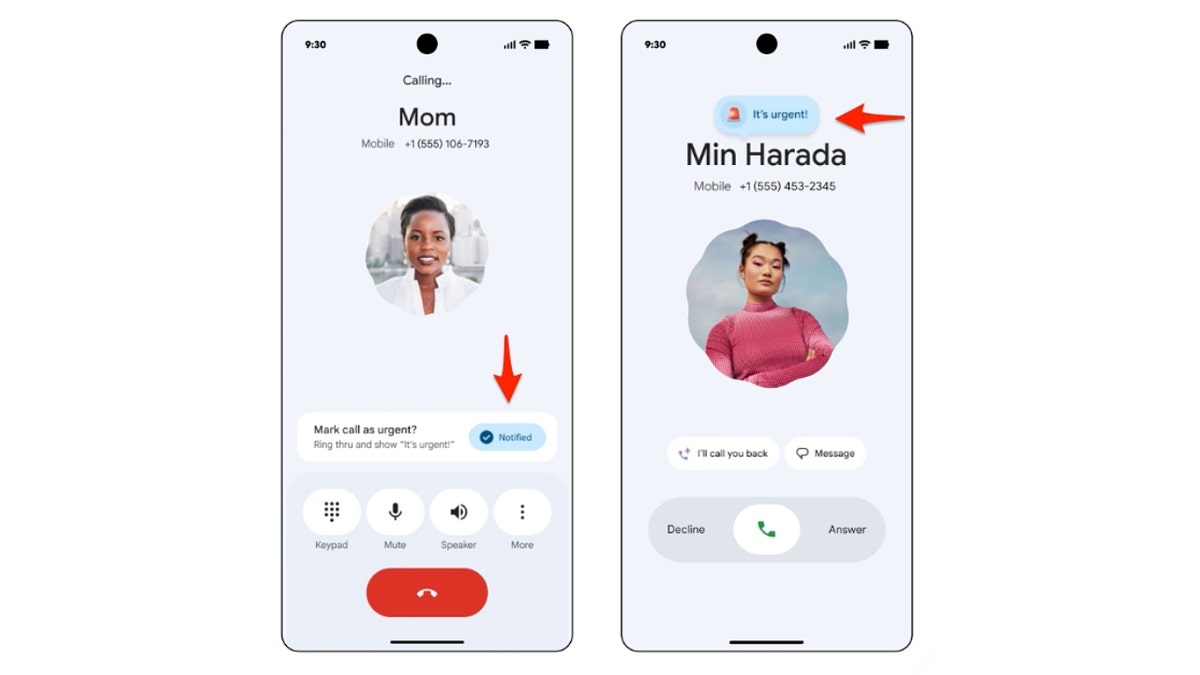
When someone receives an urgent call, the label appears on your screen and in your call history if you miss it, making it easy to quickly return the call. (Google)
Tips to get the most out of Call Reason
Use the urgent label only for situations that need quick attention
keep your updated contact list for the function to work as intended
Encourage close friends or family to use the Phone using the Google app for full compatibility
check your call history for urgent notes if you miss an important call
Take my quiz: How safe is your online security?
Do you think your devices and data are really protected? Take this quick quiz to see where you stand digitally. From passwords to Wi-Fi settings, you’ll get a personalized breakdown of what you’re doing well and what you need to improve. Take my quiz here: Cyberguy.com.
Kurt’s Key Takeaways
Call Reason feels like one of those little updates that can make everyday calls a little smoother. It gives your friends a quick idea of why you’re reaching out and helps eliminate the guesswork when timing matters. As the feature expands, it could become an even more useful way to share context before someone taps OK.
What situation in your life would make you use the urgent label first? Let us know by writing to us at Cyberguy.com.
CLICK HERE TO DOWNLOAD THE News APP
Sign up to receive my FREE CyberGuy report
Get my best tech tips, urgent security alerts, and exclusive offers delivered straight to your inbox. Plus, you’ll get instant access to my Ultimate Guide to Surviving Scams, free when you join me CYBERGUY.COM information sheet.
Copyright 2025 CyberGuy.com. All rights reserved.
Kurt “CyberGuy” Knutsson is an award-winning technology journalist with a deep love for technology, gear and devices that improve lives with his contributions to News and News Business since mornings on “News & Friends.” Do you have any technical questions? Get Kurt’s free CyberGuy newsletter, share your voice, a story idea or comment on CyberGuy.com.