



10 Ways to Protect Seniors from Email Scams
Cyber Expert Shares Tips to Avoid AI Phishing Scams
Kurt ‘The CyberGuy’ Knutsson shares practical ways to avoid falling victim to AI-generated phishing scams and discusses a report that North Korean agents are posing as IT workers to funnel money into the country’s nuclear program.
NEWNow you can listen to News articles!
Email scams have become one of the fastest ways for scammers to steal money from seniors. A single click can expose bank accounts, personal data, and retirement savings accumulated over a lifetime. That increasing risk is what prompted Bob to write to us with a question many families are now facing:
“My friend’s dad is 95 years old and lives absolutely off his phone/laptop. He refuses to give up and often clicks on email links. A few years ago, he got caught in a gift card scam that nearly cost him his life savings. It’s no longer about taking away his car keys; it’s about taking away his email and access to online banking! What do you recommend your daughter do to protect her online presence?”
Bob is right. For many seniors, email and online banking have replaced car keys as the most dangerous access point. The goal is not to take away our devices. It’s about quietly putting up safety barriers so that a bad click doesn’t turn into a financial disaster.
Here is a practical plan that families can use.
HACKERS ABUSE GOOGLE CLOUD TO SEND TRUSTED PHISHING EMAILS
Sign up to receive my FREE CyberGuy report
Get my best tech tips, urgent security alerts, and exclusive offers delivered straight to your inbox. Plus, you’ll get instant access to my Ultimate Guide to Surviving Scams, free when you join me CYBERGUY.COM information sheet.
1) Separate money from daily email use
Start by limiting the damage a single click can cause. If possible, remove access to online banking from devices used for email. When that’s not realistic, open a second checking account with just money for everyday spending and link it to a debit card for routine purchases.
Keep primary savings accounts offline or set them up for read-only access. If available, request verification in-branch or by phone for transfers over a certain amount. This way, even if credentials are compromised, larger accounts remain protected.
2) Block Email to Stop Scams Targeting Seniors
Email is the number one entry point for scams targeting seniors. Strong filtering matters. Use an email provider with advanced spam protection, such as Gmail or Outlook.com. In email settings:
- Turn off automatic image upload
- Deactivate link previews
- Block or auto-quarantine attachments from unknown senders
- move automatically messages from unknown senders to a review folder
If available, enable warnings for emails that use familiar display names but come from unknown addresses. This helps stop phishing scams that impersonate family members, banks, or service providers. These steps slow down scammers and reduce impulsive clicks before damage is done.
Email is dominant, but voicemail and callback scams are also growing rapidly among seniors, often as follow-ups to phishing emails. If possible, silence unknown calls and block voicemail-to-email transcription for unknown numbers, as many scams now start with urgent callback messages instead of links.

Email scams often begin with messages that appear routine but hide urgent threats designed to provoke quick clicks. (Kurt “CyberGuy” Knutsson)
3) Add a second pair of trusted eyes
Next, add safety nets that notify family members when something seems wrong. Enable bank alerts for large withdrawals, new payees, password changes, unusual logins, and new device logins. Add your daughter as a trusted contact whenever the bank allows it. If available, enable delays or approval requirements for first-time transfers to new beneficiaries. This creates a cooling period that can stop scam-driven transactions. For email accounts, set up a recovery contact so your daughter will receive an immediate notification if someone tries to access or reset the account.
Allow two factor authentication (2FA) on bank and email accounts, but link it to device and transfer alerts, as many scams are now successful even when 2FA is enabled.
4) Harden devices so that clicks do not equal a catastrophe
Devices must be configured to fail safely. Keep operating systems and browsers updated. Make sure the laptop uses a standard user account instead of an administrator account. This prevents the software from being installed without approval. Install real-time protection that blocks fraudulent sites before they load. Powerful antivirus software helps automatically block malicious links and fake login pages.
The best way to protect yourself from malicious links that install malware and potentially access your private information is to have powerful antivirus software installed on all your devices. This protection can also alert you to phishing emails and ransomware scams, keeping your personal information and digital assets safe.
Get my picks for the best antivirus protection winners of 2026 for your Windows, Mac, Android, and iOS devices at Cyberguy.com.
5) Use a password manager to block fake logins
Password reuse makes scams much more dangerous. Fake pop-ups and similar websites are designed to trick people into entering usernames and passwords by hand. A password manager eliminates that risk by storing credentials securely and autofilling them only on legitimate websites. If a page is fake or malicious, the password manager will not complete anything. That simple refusal often prevents account takeovers before they start. Password managers also reduce frustration by eliminating the need to remember or reuse passwords across email, banking, and business accounts. When configured correctly, this protection works silently in the background on both phones and laptops.
Many phishing scams Don’t trust fake and obvious emails anymore. They are based on realistic login pages. Autofill protection is one of the most effective ways to stop these attacks without changing daily habits.
Next, check to see if your email has been exposed in previous breaches. Our #1 pick for password manager includes a built-in breach scanner that checks to see if your email address or passwords have appeared in known breaches. If you discover a match, immediately change any reused passwords and protect those accounts with new, unique credentials.
Check out the best expert-reviewed password managers of 2026 at Cyberguy.com.
MALICIOUS CHROME EXTENSIONS STOPPED STEALING CONFIDENTIAL DATA
6) Freeze credit and control identity exposure
If scammers already have personal information, prevention alone is not enough. Freeze credit with Experian, TransUnion, and Equifax to prevent new accounts from being opened. Additionally, freeze ChexSystems and the National Consumer Telecom and Utilities Exchange to prevent criminals from opening bank accounts, phone lines, or utilities in your name.
If possible, request an IRS Identity Protection PIN to prevent tax-related identity theft.
Add continuous identity monitoring so suspicious activity quickly triggers alerts. Identity theft companies can monitor personal information such as your social security number (SSN), phone number, and email address, and alert you if it is sold on the dark web or used to open an account. They can also help you freeze your bank and credit card accounts to prevent further unauthorized use by criminals.
See my tips and best options on how to protect yourself from identity theft at Cyberguy.com.
7) Establish clear rules on scams and payments
Technology helps, but expectations matter. Have a calm conversation and agree on simple rules:
- No gift cards for urgent emails or texts
- Do not send money through unknown applications or cryptocurrencies
- Always call a trusted family member before acting urgently.
Post these rules near your computer or phone. Visual reminders reduce panic decisions. Also, before setting rules, choose a trusted primary contact. Multiple helpers can delay response during urgent scams and create confusion when quick decisions are important. That person should be the default call for anything urgent that involves money, account access, or unexpected requests.
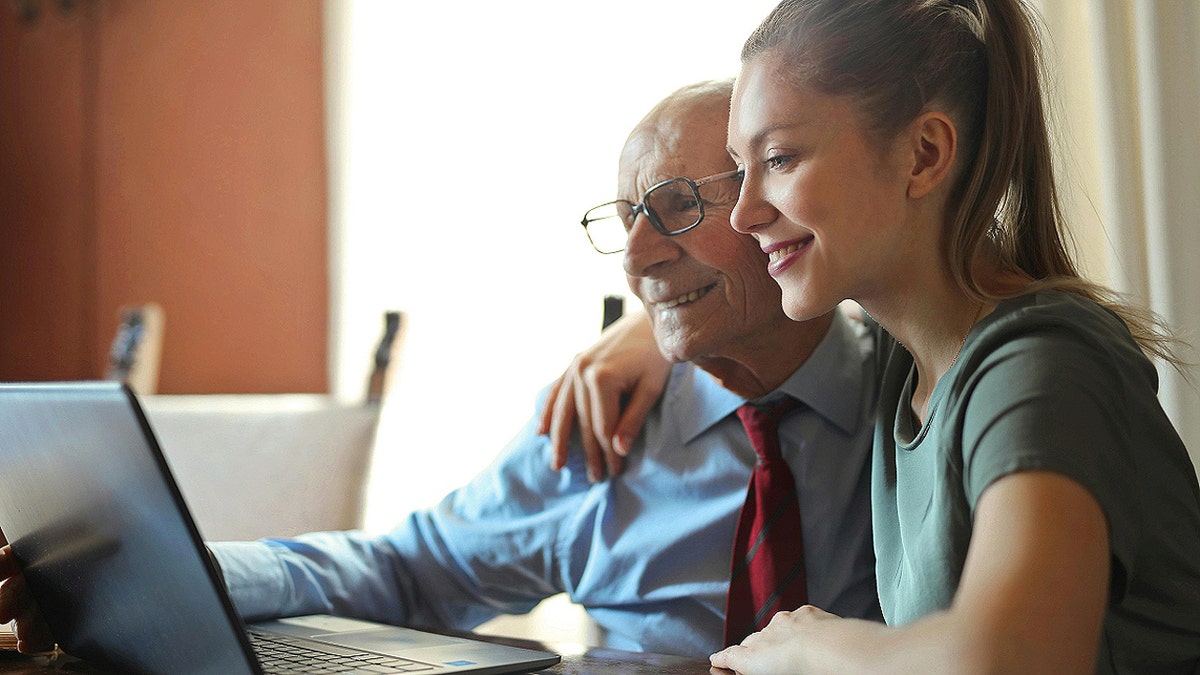
Adult children are increasingly stepping in to help parents spot red flags before a simple mistake turns into a financial loss. (Kurt “CyberGuy” Knutsson)
8) Reduce exposure with a data removal service
Scammers often find seniors obtaining personal data from public data broker websites. These sites publish phone numbers, addresses, family members, and age information that make it easy to find your way. A data deletion service works behind the scenes to exclude seniors from these databases and reduce the amount of personal information publicly available online. Fewer details exposed means fewer scam calls, fewer phishing emails, and fewer phishing attempts. This step doesn’t stop all scams, but it significantly reduces the frequency with which seniors are targeted in the first place.
Check out my top picks for data removal services and get a free scan to find out if your personal information is already available on the web by visiting Cyberguy.com.
Get a free scan to find out if your personal information is already available on the web: Cyberguy.com.
9) Use senior-friendly tracking tools the right way
Many tools designed for security Children’s toys also work well for older people when used carefully. When set up correctly, they add protection without interfering with daily routines.
Below are device-specific steps families can take today.
iPhone and iPad
Apple’s built-in Screen Time tools provide strong protection without installing additional apps.
What to configure:
- Open Settings and touch Screen time
- Activate Screen Time for your device
- Tap Content and privacy restrictions and turn it on
- Low App Store Purchasesconfigure app installations in Do not allow
- Tap Web content and limit access to approved or secure websites
- Establish a Screen time password known only to the caretaker
If the caregiver wants visibility or remote control, add the device to Family sharing and manage Screen Time from the caregiver’s Apple ID.
BROWSER EXTENSION MALWARE INFECTED 8.8M USERS IN DARKSPECTER ATTACK
Why this helps: It blocks many scam sites, prevents accidental installation of apps, and prevents fake update messages from causing damage.
Android phones and tablets
Android offers built-in protections and optional monitored controls.
What to configure:
YesSettings may vary depending on the manufacturer of your Android phone.
- Open Settings and go to Digital Wellbeing and Parental Controls
- Light parental controls for the device
- Restrict app installations and Require approval for new downloads.
- Enable safe browsing and website filtering
- Activate alerts for new app installations and account changes
For families who want shared monitoring, Google Family Link can be used to monitor app installations and receive alerts, as long as both parties agree.
Why this helps: Many Android scams rely on fake app installations. These settings block that path.
Windows computers
Windows protection works best when user accounts are configured correctly.
What to configure:
- Create a standard user account for daily use
- Keep the caregiver account as admin only
- Light Microsoft Family Safety if available
- Enable smart display and browser phishing protection
- Block software installations without administrator approval
Why this helps: Malware often installs silently in administrator accounts. This setting prevents this.
mac computers
macOS includes built-in controls similar to those on the iPhone and iPad.
What to configure:
- Create a standard senior user account
- Limit administrator access to a trusted caregiver
- Open System Settings and enable Screen Time
- Restrict app installations and system changes
- Keep built-in malware and phishing protections enabled

Simple digital safety barriers can reduce risk while allowing seniors to retain their devices and independence. (Kurt “CyberGuy” Knutsson)
Why this helps: Avoid installing fake software updates and malicious downloads.
10) Best practices for all devices
- Use alert-only or limited control settings whenever possible
- Review settings together so expectations are clear
- Avoid tools that seem invasive or confusing
- Focus on blocking damage, not monitoring behavior
It’s not about spying. It’s about adding digital seat belts while preserving independence. When used respectfully, these tools reduce risk without changing daily habits.
Pro Tip: Use a Secure Email Service for Privacy
For families looking to go a step further, switching to a secure email service can significantly reduce exposure to scams. Privacy-focused email providers are designed to limit tracking, block hidden tracking pixels, and reduce the amount of data that advertisers or scammers can collect from inbox activity. Many secure email services also offer disposable email addresses or aliases for one-time sign-ups. If an alias starts receiving spam or fraudulent messages, it can be disabled without affecting the primary email account. This makes it easier to keep a primary email address private and limit long-term exposure. Secure email platforms typically include features like encrypted messages, no ads, and stricter privacy controls. While switching email providers is optional, it can be a helpful upgrade for seniors who receive high volumes of spam or have been targeted by scams repeatedly.
Why it is important: Less tracking means fewer scam attempts. Aliases reduce the frequency with which personal email addresses are exposed, without changing daily habits.
For recommendations on private, secure email providers that offer alias addresses, visit Cyberguy.com.
CLICK HERE TO DOWNLOAD THE News APP
Kurt’s Key Takeaways
Protecting older people online is not about control. It’s about prevention. Email scams are designed to exploit trust and urgency, especially in people who did not grow up with digital threats. Intelligent security barriers protect independence while preventing irreversible errors. If email and banking are the keys to today’s car, families need modern security features to go with them.
If your parents clicked on a scam email right now, would you know before the money ran out? Let us know by writing to us at Cyberguy.com.
Sign up to receive my FREE CyberGuy report
Get my best tech tips, urgent security alerts, and exclusive offers delivered straight to your inbox. Plus, you’ll get instant access to my Ultimate Guide to Surviving Scams, free when you join me CYBERGUY.COM information sheet.
Kurt “CyberGuy” Knutsson is an award-winning technology journalist with a deep love for technology, gear and devices that improve lives with his contributions to News and News Business since mornings on “News & Friends.” Do you have any technical questions? Get Kurt’s free CyberGuy newsletter, share your voice, a story idea or comment on CyberGuy.com.