



Apple now lets you add your passport to your phone wallet
NEWNow you can listen to News articles!
Apple now lets you add your passport to your phone wallet, giving you a new way to move through TSA lines with less stress this holiday season. Instead of searching for your ID in your bag, you can use a secure digital ID on your iPhone at over 250 airports in the United States. With more digital ID options popping up across the country, here’s what you need to know before you start using it.
Sign up to receive my FREE CyberGuy report Get my best tech tips, urgent security alerts, and exclusive offers delivered right to your inbox. Plus, you’ll get instant access to my Ultimate Guide to Surviving Scams, free when you join me CYBERGUY.COM fact sheet
How Apple Digital ID works
Digital ID stores your passport information securely on your device. Your data remains encrypted at all times. Apple can’t see where or when you use your digital ID.
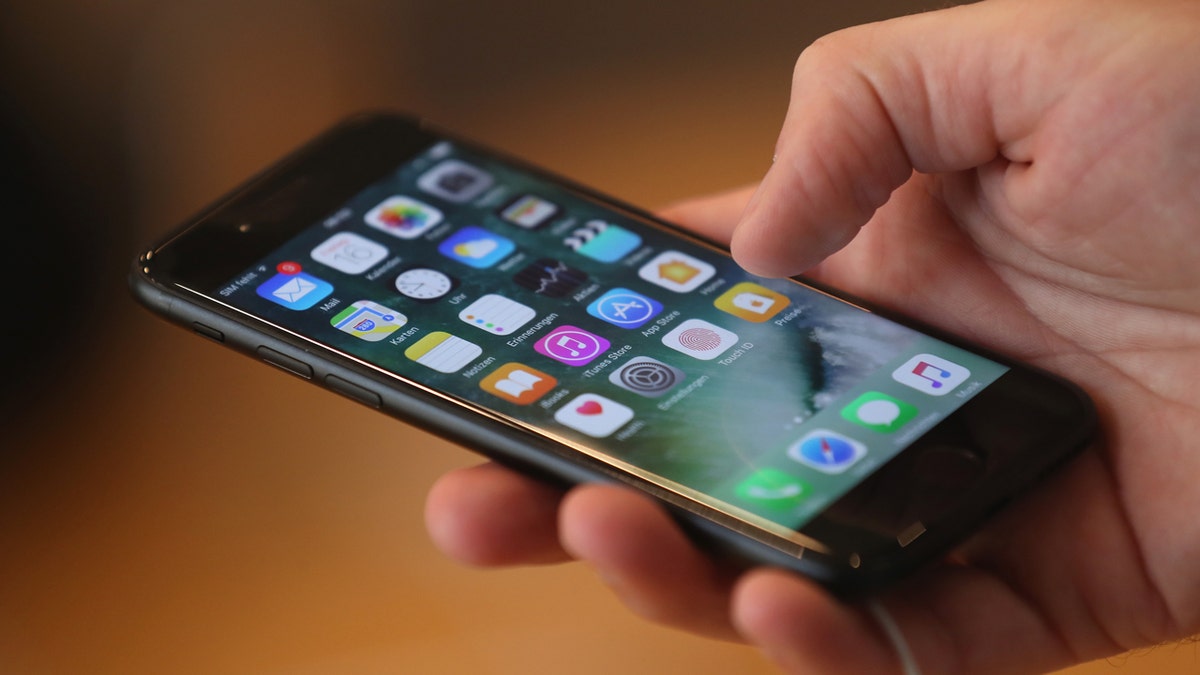
Apple’s new Digital ID lets you store a passport on your iPhone for faster TSA checks. (Sean Gallup/Getty Images)
When you present your digital ID, you choose what information TSA can see. You review the request on your screen and confirm it with Face ID or Touch ID. This helps avoid situations where someone else can access your ID without your approval.
APPLE PASSKEY TECHNOLOGY TRANSFORMS MAC SECURITY WITH BIOMETRIC AUTHENTICATION AND ENCRYPTED STORAGE
Where digital ID works
Digital ID works for identity checks at select TSA lanes during domestic travel. It does not work for international flights or border crossings. Apple says support will expand to certain hotels, stores and online services where age or identification checks are needed.
Eligibility requirements for Apple Digital ID
Before adding a digital ID to Apple Wallet, you need to meet some basic requirements. To get started, you must have a valid and unexpired US passport. You also need an iPhone 11 or later with iOS 26.1 or later.
If your iPhone is not updated, you can install iOS 26.1 by opening Settingstouching Generalchoosing Software update and following the steps on screen. Make sure your phone is charged and connected to Wi-Fi before starting the update.
Digital ID in Wallet works only at select TSA checkpoints for domestic travel. It cannot replace a physical passport. Therefore, you should still bring your physical passport or license in case the TSA needs to check it. You will also need to carry your physical passport for any international travel or border crossing.
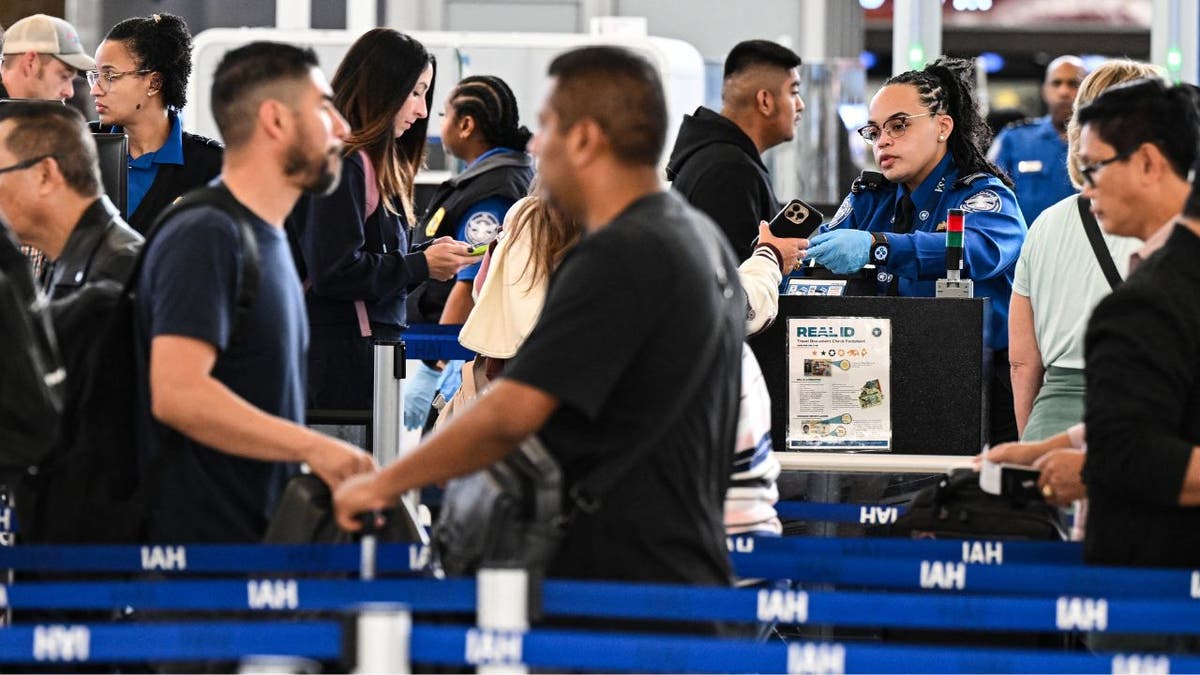
With Digital ID, you control what information is shared securely and confirm each request with Face ID. (Ronaldo Schemidt/News via Getty Images)
How to add your passport to Apple Wallet
- Setting up digital ID only takes a few minutes. You need an iPhone and a valid US passport.
- Open the Wallet app on your iPhone
- Touch the add button
- Select Driver license either ID cards
- Choose Digital ID
- Click Add to iPhone and Apple Watch either Add to iPhone only
- Scan the passport photo page
- Hold your iPhone to read the passport chip
- When it says “Verification required,” click Continue
- Take a selfie
- Complete the indications of short head movements
- Wait verification
- His Digital ID appears in Apple Wallet when it is approved. You will receive a notification that says: The digital ID is ready to use.
COMPLETE CLOUD STORAGE SCAM STEALS YOUR PHOTOS AND MONEY
How to use your digital ID at TSA
- Double click the side button to open Wallet.
- Choose Digital identification.
- Hold your device near the TSA ID reader.
- Review what information TSA requests.
- Approve with Face ID or Touch ID.
How to add a passport to Google Wallet
Google users can also store a digital version of their US passport in Google Wallet. This option works at TSA checkpoints that support digital IDs for domestic travel, just like Apple’s version. You will still need to carry your physical passport or license in case the TSA requests it. Setting it up is simple and only takes a few minutes.
How to add your passport to Google Wallet
YesSettings may vary depending on the manufacturer of your Android phone.
- Open the Google Wallet app on your Android phone
- Tap Add to wallet
- Select ID card
- Choose US passport
- Scan the photo page of your passport
- hold your phone near passport chip to read it
- Take a selfie video so Google can verify your identity
- Follow the on-screen head movement prompts
- Wait verification
- Your passport will appear in Google Wallet once approved
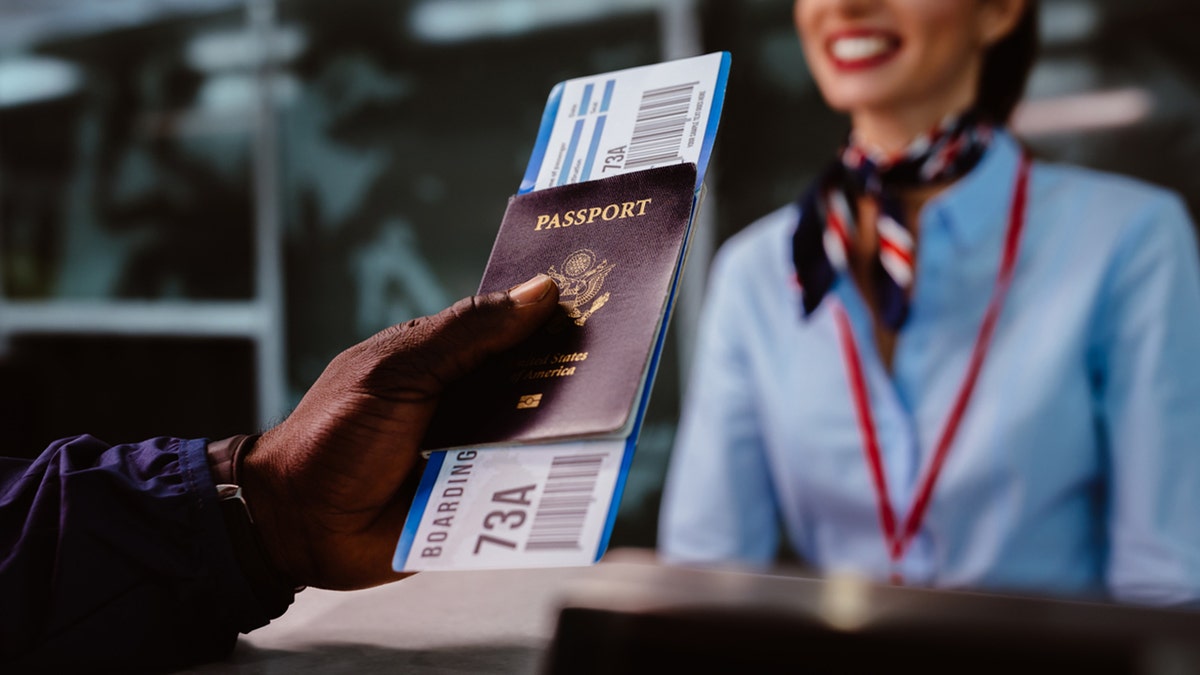
Digital ID works at more than 250 airports for domestic travel with more locations coming soon. (iStock)
How to use your digital passport at TSA with Google Wallet
YesSettings may vary depending on the manufacturer of your Android phone.
- Open Google Wallet on your phone
- touch your passport
- Hold your device near the TSA ID reader
- Review the information TSA Requests
- Please confirm with your device unlock method, such as fingerprint or PIN
FLIGHT CANCELLATION TEXTS ARE ADDRESSED TO TRAVELERS
Take my quiz: How safe is your online security?
Do you think your devices and data are really protected? Take this quick quiz to see where you stand digitally. From passwords to Wi-Fi settings, you’ll get a personalized breakdown of what you’re doing well and what you need to improve. Take my quiz here: Cyberguy.com
Kurt’s Key Takeaways
Digital ID gives you a new way to move through crowded TSA lines with fewer hassles. It uses the security features built into the iPhone and Apple Watch and keeps your passport information stored on your device. Use it for domestic travel and keep your physical ID on hand as a reliable backup.
Would you feel safe using a digital passport during your next TSA screening? Let us know by writing to us at Cyberguy.com
CLICK HERE TO DOWNLOAD THE News APP
Sign up to receive my FREE CyberGuy report Get my best tech tips, urgent security alerts, and exclusive offers delivered right to your inbox. Plus, you’ll get instant access to my Ultimate Guide to Surviving Scams, free when you join me CYBERGUY.COM fact sheet
Copyright 2025 CyberGuy.com. All rights reserved.
Kurt “CyberGuy” Knutsson is an award-winning technology journalist with a deep love for technology, gear and gadgets that improve lives with his contributions to News and News Business since mornings on “News & Friends.” Do you have any technical questions? Get Kurt’s free CyberGuy newsletter, share your voice, a story idea or comment on CyberGuy.com.