



Malicious Chrome Extensions Detected Stealing Sensitive Data
NEWNow you can listen to News articles!
Chrome extensions are supposed to make your browser more useful, but they’ve quietly become one of the easiest ways for attackers to spy on what you do online. Security researchers recently discovered two Chrome extensions that have been doing exactly that for years.
These extensions seemed like harmless proxy tools, but behind the scenes, they hijacked traffic and stole sensitive data from users who trusted them. What makes this case worse is where these extensions were found. Both were listed in the official Chrome extension marketplace.
Sign up to receive my FREE CyberGuy report
Get my best tech tips, urgent security alerts, and exclusive offers delivered right to your inbox. Plus, you’ll get instant access to my Ultimate Guide to Surviving Scams, free when you join me CYBERGUY.COM information sheet.
FALSE AI CHAT RESULTS ARE SPREADING DANGEROUS MAC MALWARE
Security researchers discovered malicious Chrome extensions that silently routed users’ web traffic through attacker-controlled servers to steal sensitive data. (Gokhan Balci/Anadolu Agency/Getty Images)
Malicious Chrome Extensions Hidden in Plain Sight
Socket researchers discovered two Chrome extensions with the same name, “Phantom Shuttle,” posing as tools for proxy routing and network speed testing (via Bleeping Computer). According to researchers, the extensions have been active since at least 2017.
Both extensions were published under the same developer name and were marketed for foreign trade workers who need to test internet connectivity from different regions. They were sold as subscription-based tools, with prices ranging from approximately $1.40 to $13.60.
At first glance everything seemed normal. The descriptions matched the functionality. The price seemed reasonable. The problem was what the extensions did after installation.
How Phantom Shuttle steals your data
Socket researchers say Phantom Shuttle routes all of its web traffic through proxy servers controlled by the attacker. Those proxies use encrypted credentials built directly into the extension’s code. To avoid detection, the malicious logic is hidden within what appears to be a legitimate jQuery library.
The attackers didn’t simply leave the credentials in plain text. Extensions hide them using a custom character index encoding scheme. Once active, the extension listens to web traffic and intercepts HTTP authentication challenges on any site you visit.
To ensure traffic always flows through your infrastructure, extensions dynamically reconfigure Chrome’s proxy settings using an automatic configuration script. This forces your browser to route requests exactly where the attacker wants them.
In its default “smart” mode, Phantom Shuttle routes traffic from over 170 high-value domains through its proxy network. That list includes development platforms, cloud service dashboards, social media sites, and adult content portals. Local networks and the attacker’s own command and control domain are excluded, which will likely avoid breaking things or raising suspicions.
While acting as an intermediary, the extension can capture anything you submit through web forms. This includes usernames, passwords, card details, personal information, HTTP header session cookies, and API tokens extracted directly from network requests.
CyberGuy contacted Google about the extensions and a spokesperson confirmed that both have been removed from the Chrome Web Store.
10 SIMPLE CYBERSECURITY RESOLUTIONS FOR A SAFER 2026
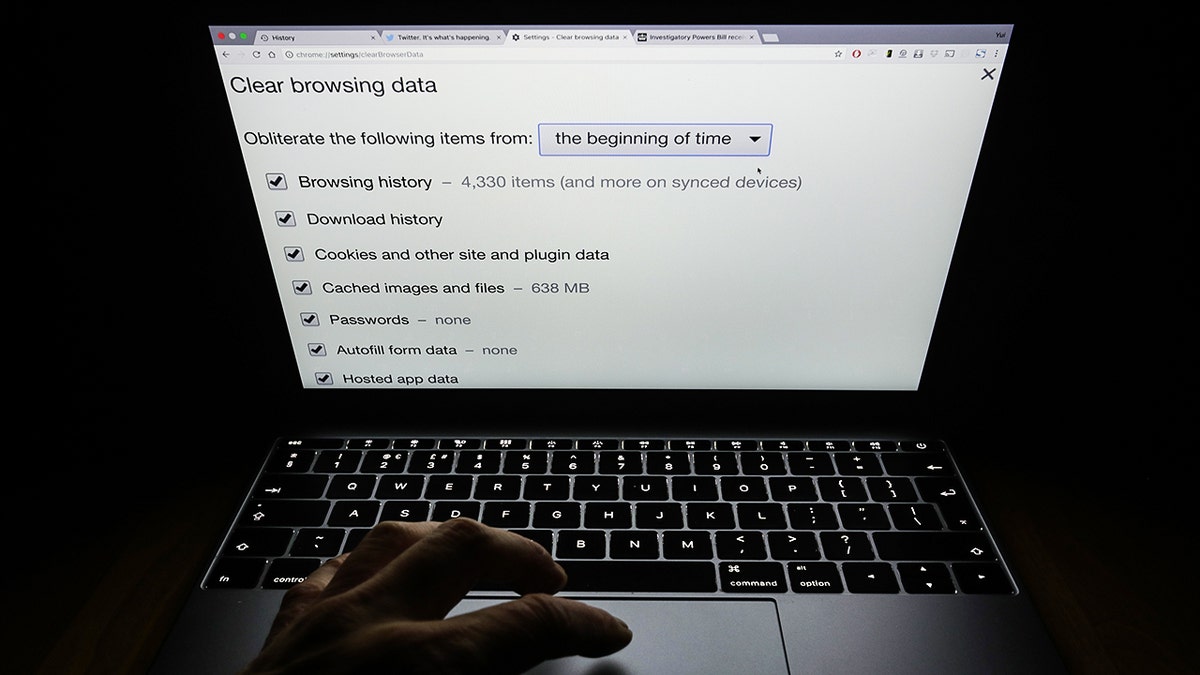
Two Chrome extensions posing as proxy tools were discovered spying on users for years while listed on Google’s official Chrome Web Store. (Yui Mok/PA Images via Getty Images)
How to check the extensions installed in your browser (Chrome)
The step-by-step instructions below apply to Windows PCs, Macs, and Chromebooks. In other words, desktop Chrome. Chrome extensions cannot be fully reviewed or removed from the mobile app.
Step 1: Open your extension list
- Open Chrome on your computer.
- Click three point menu in the upper right corner.
- Select Extensions
- Then click Manage extensions.
You can also type this directly into the address bar and press Enter:
chrome://extensions
Step 2: Look for anything you don’t recognize
Review all the extensions listed and ask yourself:
- Do I remember installing this?
- Do I still use it?
- Do I know what it really does?
If the answer to any of these questions is no, take a closer look.
Step 3: Review permissions and access
Click Details at any extent you are unsure of. Pay attention to:
- Permissionsespecially anything that can read or change data on the websites you visit
- Site accesslike extensions that run on all sites
- Background accesswhich allows the extension to remain active even when not in use
Proxy tools, VPNs, downloaders, and network-related extensions deserve extra scrutiny.
Step 4 – Disable suspicious extensions first
If something feels wrong, change the extension off. This immediately stops it from running without deleting it. If everything continues to work as expected, it is likely that the extension was not essential.
Step 5: Remove extensions you no longer need
To completely remove an extension:
- Click Eliminate
- Confirm when requested
Unused extensions are a common target for abuse and should be removed periodically.
Step 6: Restart Chrome
Close and reopen Chrome after making changes. This ensures that disabled or removed extensions are no longer active.
MICROSOFT TYPOSQUATTING SCAM SWAPS LETTERS TO STEAL LOGIN
Cybersecurity experts warn that trusted browser extensions can become powerful surveillance tools once installed. (Gabby Jones/Bloomberg via Getty Images)
Six steps you can take to stay safe from malicious Chrome extensions
You can’t control what leaks into App Store reviews, but you can reduce the risk by changing how you install and manage extensions.
1) Install extensions only when absolutely necessary
Each extension increases your attack surface. If you really don’t need it, don’t install it. Convenience extensions often come with many more permissions than they deserve.
2) Check the editor carefully
Reputable developers usually have a track record, a website, and several well-known extensions. Be wary of tools from unknown publishers, especially those that offer networking or proxy functions.
3) Read multiple user reviews, not just ratings
Star ratings can be falsified or manipulated. Look for detailed reviews that mention long-term use. Be wary of sudden waves of generic praise.
4) Check the permissions before clicking install
If an extension asks to “read and change all data on the websites you visit,” take it seriously. Proxy tools and network extensions can see everything you do.
5) Use a password manager
A password manager won’t stop a malicious extension from spying on your traffic, but it can limit the damage. One-time passwords mean that stolen credentials cannot unlock multiple accounts. Many administrators also refuse to automatically complete suspicious pages.
Next, check to see if your email has been exposed in previous breaches. Our #1 password manager pick (see Cyberguy.com/Passwords) includes a built-in breach scanner that checks to see if your email address or passwords have appeared in known breaches. If you discover a match, immediately change any reused passwords and protect those accounts with new, unique credentials.
Check out the best expert-reviewed password managers of 2025 at Cyberguy.com.
6) Install powerful antivirus software
Strong antivirus software can detect suspicious network activity, proxy abuse, and unauthorized changes to browser settings. This adds a layer of defense beyond Chrome’s own protections.
The best way to protect yourself from malicious links that install malware and potentially access your private information is to have powerful antivirus software installed on all your devices. This protection can also alert you to phishing emails and ransomware scams, keeping your personal information and digital assets safe.
Get my picks for the best antivirus protection winners of 2025 for your Windows, Mac, Android, and iOS devices at Cyberguy.com.
CLICK HERE TO DOWNLOAD THE News APP
Kurt’s Key Takeaway
This attack does not rely on phishing emails or fake websites. It works because the extension itself becomes part of your browser. Once installed, see almost everything you do online. Extensions like Phantom Shuttle are dangerous because they combine real functionality with malicious behavior. The extensions provide the proxy service they promise, reducing suspicion while silently routing user data through servers controlled by the attacker.
When was the last time you checked the extensions installed on your browser? Let us know by writing to us at Cyberguy.com.
Sign up to receive my FREE CyberGuy report
Get my best tech tips, urgent security alerts, and exclusive offers delivered right to your inbox. Plus, you’ll get instant access to my Ultimate Guide to Surviving Scams, free when you join me CYBERGUY.COM information sheet.
Copyright 2025 CyberGuy.com. All rights reserved.
Kurt “CyberGuy” Knutsson is an award-winning technology journalist with a deep love for technology, gear and devices that improve lives with his contributions to News and News Business since mornings on “News & Friends.” Do you have any technical questions? Get Kurt’s free CyberGuy newsletter, share your voice, a story idea or comment on CyberGuy.com.